How to use Handover
Written for the agency, not the client. Everything here takes minutes rather than hours — the point of the product is that you fill in facts and it writes the document.
What Handover is
When you finish a website, everything you learned building it — where the domain is registered, who holds the hosting account, which plugins matter, what the retainer covers — lives in your head and in a scattering of emails. Handover turns that into one branded page for the client.
You fill in a form of facts. Handover writes the sentences around them, in plain language a non-technical business owner can follow, and publishes it at an unlisted link in your branding. The client also gets a printable PDF.
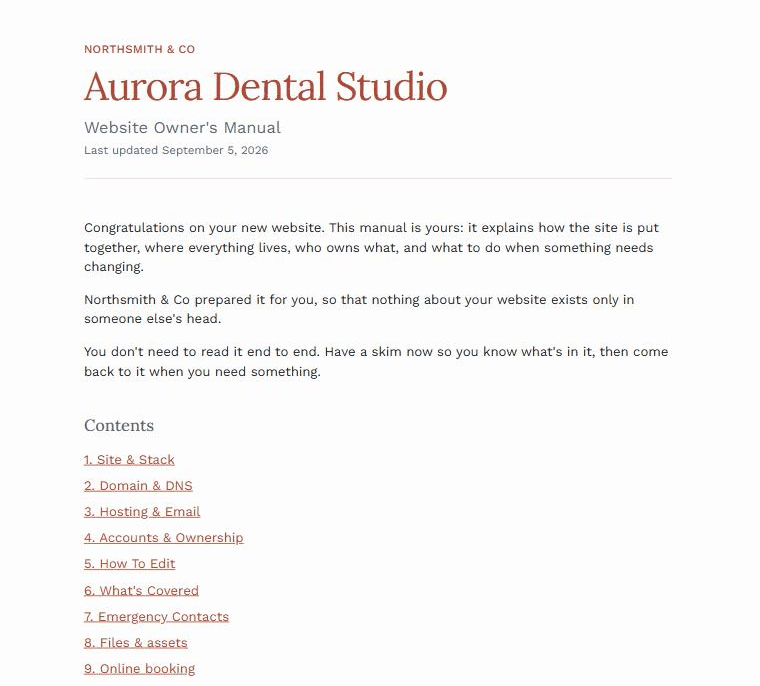
Sections you leave empty do not appear. A manual with no retainer, no assets and no maintenance schedule reads as a complete document about a simpler arrangement, not as one with holes in it.
The no-passwords rule
Handover has no field anywhere for a password, an API key, or any other credential. This is enforced in the database, not just hidden in the interface — if you label a custom field “password”, the save is refused.
What the manual records instead is which accounts exist and who owns each one. That is the useful half. A client who needs access contacts the named owner; nobody needs a shared secret sitting in a document.
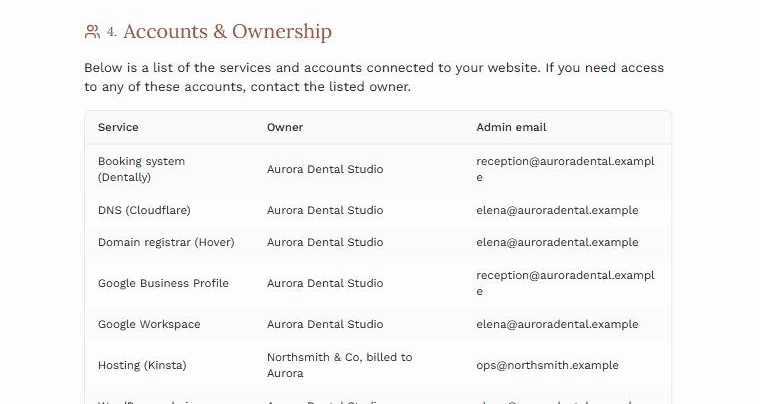
Why it matters commercially. You can tell a client, truthfully, that nothing in this document can be used to sign in as them. Most handover templates do the opposite and ask you to type the logins into the file.
One thing the rule cannot cover: a share link you paste into Files & assets. Dropbox, Drive and Figma links often contain an access token, which means the link is the secret. Handover warns you when it spots one, but it will not stop you — if a file should not be opened by anyone with the URL, record where it lives rather than linking it.
Your first manual
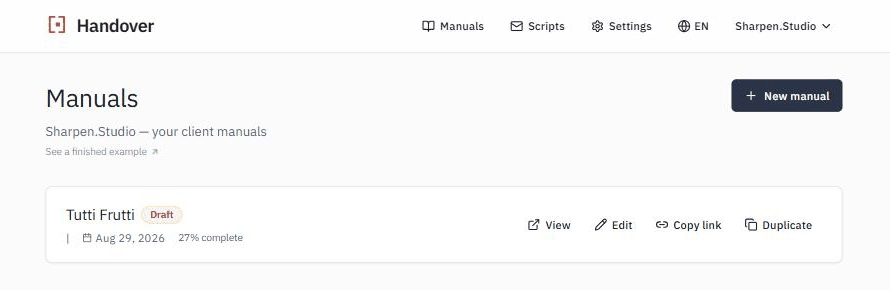
- Set your brand once. Settings holds your agency name, logo, brand colour, heading and body fonts, support email and hours. Every manual you create inherits them.
- Create a manual. Manuals → New manual, and give it the client’s name. Nothing is public yet.
- Fill in what you know. Work down the sections. It saves as you type.
- Publish it when you are happy, and send the link.
Filling it in
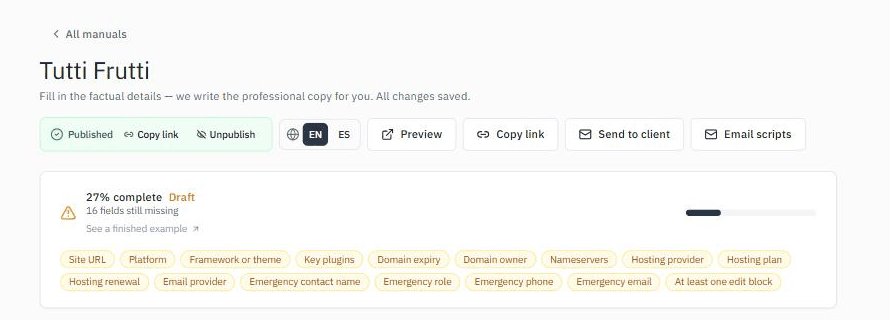
The editor is a set of sections you can open and close. There is no save button — every field saves when you leave it.
What each section is for
- Site & Stack — what the site is built on and which plugins matter.
- Domain & DNS — registrar, expiry, who owns the domain, who can sign in to the registrar, where DNS is managed and what changed at handover. The most valuable section in the document when something breaks.
- Hosting & Email — host, plan, renewal date, mail provider.
- Accounts & Ownership — each service and its named owner.
- How To Edit — short how-tos for the everyday changes this client will actually make.
- What’s Covered — what the retainer includes and what is billed separately.
- Maintenance schedule — the recurring work, and who does each job.
- Emergency Contacts — who to call when the site is down.
- Files & assets — where the logo, brand guide and originals live.
- Client contacts — private to you. Never shown on the manual.
You can add your own fields to any section, add whole custom sections, and reorder them. Anything you leave blank simply does not render.
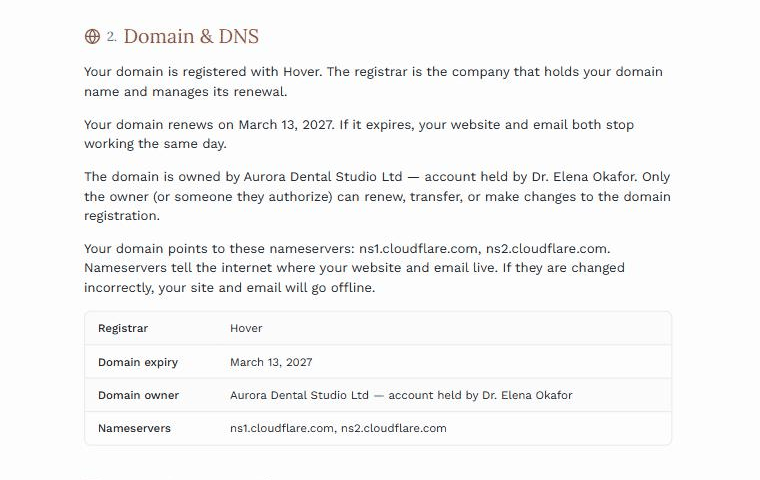
Write for the client, not for another developer. The generated copy already explains what a nameserver is and why a lapsed domain takes email down with it. Your job is the facts.
Ownership and access are two different questions
Domain owner is whose name the domain is registered in — the client’s, yours on their behalf, a third party’s, or not yet confirmed. Who can sign in to the registrar is a separate question, and it is the one that bites. The client is very often the registered owner while only the agency can actually log in, and nobody discovers this until the domain is expiring and the agency is long gone. Answer both.
Not every handover changes the nameservers
Plenty do not. If the client keeps DNS at their registrar or with their mail provider and you only repointed the A record at the new host, say so — the manual asks where DNS is managed, who can sign in there, and what changed at handover: a full nameserver move, records only, or nothing. Record the individual records you changed and the next developer knows exactly what was touched.
Tick “email is hosted somewhere else” when it is true. The manual then carries a warning telling whoever reads it that changing this domain’s nameservers would move the mail settings too, and can stop the client’s email working the same day. This is the single most expensive mistake made on a handed-over domain, and one sentence in the right place prevents it.
The maintenance schedule
This is the section that pays for the retainer. It lists the recurring work on the site — daily, weekly, monthly and once a year — and puts a name against every job.
You do not have to write it. Open the section on an empty manual and press Add the standard schedule: twenty-one tasks a typical site needs, each with a suggested owner. Edit, reassign or delete any of them.
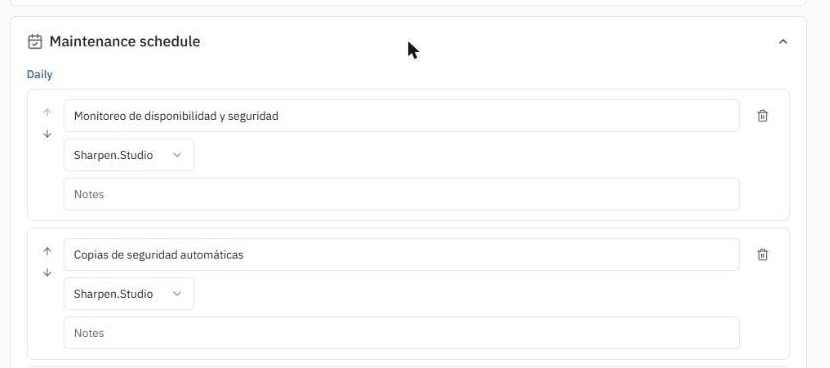
On the manual itself, the owner column shows real names — your agency’s name against the jobs you do, the client’s against theirs. That is the difference between a checklist and a proposal: the client reads their own name beside seven tasks and understands what they have taken on.
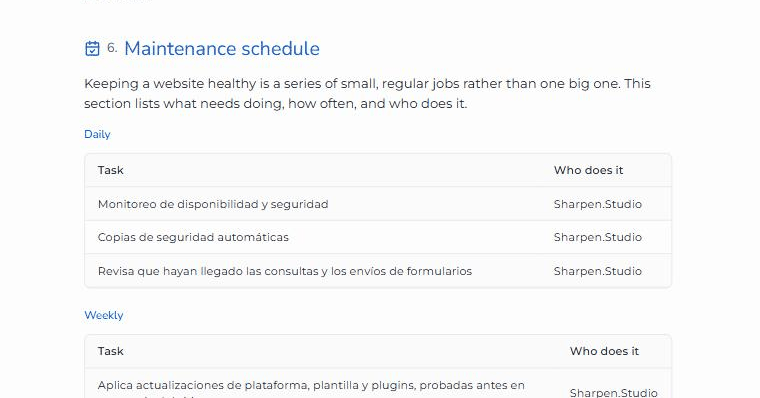
Use it in the renewal conversation. “Here is everything that got done this year, and here is what stops if we stop.” It is a far better argument than a line on an invoice.
Publishing
A new manual is a draft. It is not reachable by anyone but you until you press Publish, so a half-finished manual is never sitting at a public address.
While it is a draft you can still open its URL yourself — you will see the page exactly as the client will, with a banner reminding you it is not live. That banner does not print.
If you publish a manual that is less than 60% complete, Handover warns you. It does not stop you: a small site may legitimately have little to record.
Unpublish takes it offline again. Anyone holding the link gets a not-found page from that moment.
Plans, limits & archiving
Handover counts active manuals — the ones you are still maintaining for a client. Drafts do not count, and neither do archived manuals, which stay online and readable for the client either way.
| Plan | Price | Active manuals | Drafts & archived | Handover credit line |
|---|---|---|---|---|
| Free | $0 | 1 | Unlimited | Shown |
| Freelancer | $19 / month | 3 | Unlimited | Removed |
| Studio | $39 / month | 10 | Unlimited | Removed |
| Agency | $79 / month | Unlimited | Unlimited | Removed |
There is no monthly quota and nothing resets. The number is how many manuals are published at any one time, not how many you create.
The three states a manual can be in
- Draft — never published, only you can see it. Does not count, on any plan. Keep as many as you like.
- Active — published, your client can open it, and you are still editing it. This is the one that counts.
- Archived — finished with, still online at the same address and still printable, now read-only. Does not count.
Archive, Restore and Delete all sit in the … menu at the end of a manual’s row on your manuals list, alongside Duplicate and Save as template.
Deleting a manual
Delete removes a manual and everything in it permanently — there is no undo and no recycle bin. Deleting a draft asks for a plain confirmation. Deleting a manual that has been published asks you to type the client’s name first, because their link stops working the moment you confirm.
If a client’s work is finished, archive rather than delete. Archiving frees the slot and keeps their page readable; deleting takes it away from them. Delete is for test manuals and mistakes.
How archiving works, and why it exists
Archiving frees a slot without taking anything away from your client. The manual stays online at the address they already have, they can still read it and still print it — it simply stops being edited, and stops counting against your plan.
This is the answer to the obvious problem with any limit. You finish a build in 2026 and hand the client a link. Two years later you are working with three other clients and want to publish a fourth manual. Without archiving your only options would be to pay more or to delete a real client’s page — and a document that vanishes is worse than no document at all.
So: archive the older one. The 2026 client still opens the same link and finds the same information. You publish the new manual on the same plan. Nobody loses anything.
Archiving is not unpublishing. Archive keeps the page online and read-only. Unpublish takes it offline entirely and the client gets a not-found page. Use archive for finished work; use unpublish only for something published by mistake.
What happens when you hit the limit
Publishing is blocked until you are back under it, and you have two ways forward: archive an older manual, or move up a plan. Nothing you have already handed to a client goes offline in either case.
If you move to a smaller plan
Nothing goes offline. Manuals that are already live stay live and readable; you just cannot publish new ones until you are under the new limit. A client’s page is never taken down because a subscription changed.
What the free plan does not include
Two things: the small “Made with Handover” line at the bottom of the page, and templates. Editing and writing email scripts is not one of them — that works on every plan. Everything else — your logo, your colours, your fonts, the live link, the printable PDF, all the sections, both languages — is the same on every plan.
Sending it to the client
Copy link puts the public URL on your clipboard. Send to client opens your own mail client with the subject and body already written in the manual’s language — the email genuinely comes from you, from your address, with your signature. Handover never emails your client.
The link is unlisted and unindexed, not private. Each manual sits at a web address ending in ten random characters, so nobody guesses it or stumbles across it, and manuals are excluded from search engines. But it is not password-protected: anyone holding the link can open it. Treat it as you would any document you email — fine to send to a client, worth not posting publicly.
If a link reaches the wrong person, use Unpublish. That is the only action that takes the page offline. Archive does not — an archived manual stays online and readable at the same address, which is the whole point of it. Unpublish first; archive later if you want to keep the slot free.
Handover sign-off
A manual says what a website is. Sign-off says the handover actually happened, and what it covered. It is the last section of the editor, and it puts a dated record at the end of the client’s manual.
What you tick
- Domain ownership confirmed
- Hosting confirmed
- Accounts and access reviewed
- Credentials transferred separately
- Maintenance responsibilities explained
- Files and assets delivered
Add who you went through it with in Confirmed with, then Mark handover complete. The date is stamped for you — you never type it.
You do not have to tick everything. Some handovers genuinely have nothing to transfer, and the manual only ever shows the items you ticked. An unfinished checklist on a client’s page reads as an accusation, so the ones you left blank simply do not appear.
What the client sees
At the very end of their manual, after the last section:
Handover completed on 7 September 2026. Domain ownership confirmed · Hosting confirmed · Credentials transferred separately. Confirmed with Matthew Rosenberg.
It prints with the rest of the manual and stays on one page. Before you mark it complete, nothing appears at all.
You record it, not the client
There is nothing on the client’s page to click. The manual stays read-only for whoever opens it. That is deliberate: the page has no login, so a button anyone with the link could press would prove nothing, and we would rather have an honest record than a reassuring-looking one.
It is a record, not a signature. It says what was handed over and when, in your words. It is not a waiver, the client has not agreed to anything by it, and it should not be relied on as consent. If you need a countersigned document, use a tool built for signatures — and put the manual link in it.
Where credentials fit
“Credentials transferred separately” is the honest version of the thing Handover deliberately will not do. The manual records that access changed hands; the access itself goes through a password manager, or the client held it all along. Nothing about the credential is ever stored here. See the no-passwords rule.
Undoing it
Mark it complete too early and Undo clears the date and removes the block from the client’s page entirely. Your ticks stay where they were.
Duplicates and templates
Sign-off never copies. Duplicate a manual and the new one starts unticked and unstamped, because it belongs to one handover on one date. Templates carry none of it either.
Email scripts
Four emails, written for the four moments that decide whether a care plan happens: before the sale, at launch, one month after launch, and at renewal.
You can rewrite any of them, and write your own — in any language, on every plan including free. See Editing and writing scripts below.
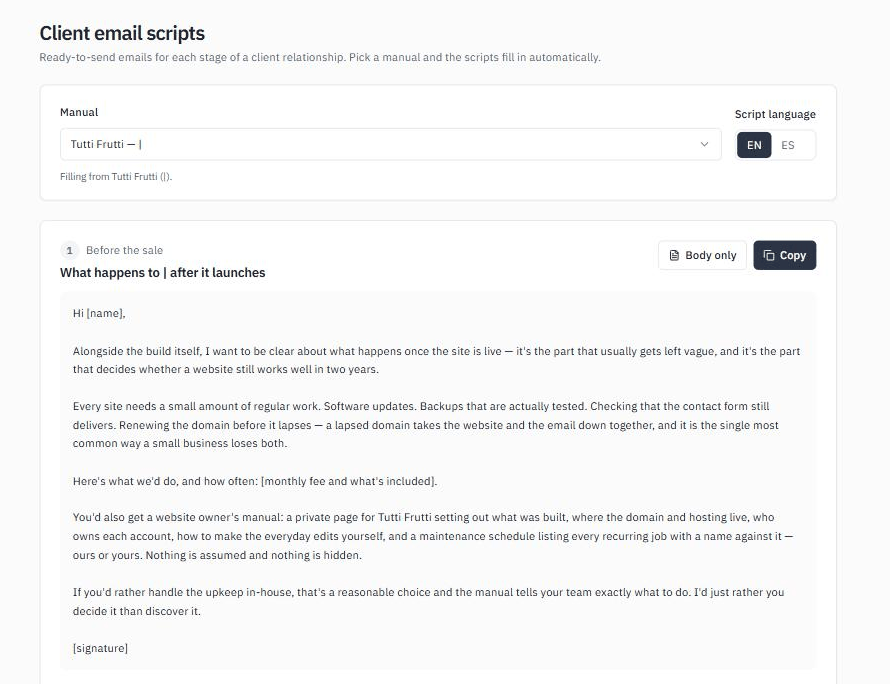
Anything in square brackets — [monthly fee and what’s included], [date] — is a blank only you can fill. Everything else is ready to send. Handover is not mentioned anywhere in them; they read as your emails, because they are.
Editing and writing scripts
The four scripts are a starting point, not a script you are stuck with. They go out from your address, with your signature, so they should sound like you. Edit them, or write your own. Nothing here is limited by plan — free accounts can do all of it.
Editing one of the four
Edit on any script opens the subject and body. Save, and that version is yours from then on — the card shows Edited. If we ever improve the original, your version is never overwritten.
Reset to original puts ours back and discards yours. It also means that if we have improved that script since, you get the improvement.
Tokens, and why the editor looks different
Scripts contain tokens — {client_name}, {site_name}, {site_url}, {manual_url}, {support_email} — that fill in from whichever manual you have selected.
The editor shows the source, not the filled version. Reading a script you see the client’s real name; editing it you see {client_name}. That is correct — keep the braces, or that script will name one client forever.
A token with nothing to fill it appears to the reader as a readable placeholder in square brackets, never as a blank space.
Writing your own
New script takes a name, a language, a subject and a body. Use it for the emails your studio sends that we don’t ship — a post-launch training note, an annual review, a handover to another agency — and they fill in from the selected manual exactly like the built-in four.
Other languages
We ship the four scripts in English and Spanish only. If you work in another language, write your own set: choose New script, type the language name, and it becomes a choice in the language selector alongside English and Español. There is no limit on how many languages you add.
One warning you may see
If what you type looks like it might contain a credential, an amber note appears under the field. It never blocks you and never refuses a save — it is there because an email is the easiest place in the world to send a password by accident, and Handover’s whole promise is that it holds no secrets. Send credentials through a password manager instead.
Your branding
The manual carries your logo, your brand colour, and your choice of heading and body fonts. Your logo links back to your website. The tab title, the icon and the link preview all belong to you as well, so a client who forwards the link sends something that looks like it came from your studio.
On the free plan a single “Made with Handover” line sits in the footer. Both paid plans remove it. Fonts are self-hosted rather than loaded from Google, so your client’s visitors are not handed to a third party.
Printing & PDFs
Every manual prints properly. Print / Save as PDF at the top of the page produces a clean document: a contents list on its own page, numbered sections, tables that repeat their headers if they run across a page break, and your brand colour preserved.
The file is named for you and the client — your-agency-website-manual-clientname-20260905-1046.pdf — so it files itself sensibly on their computer.
Suggest the client saves a PDF when you hand the manual over, and again whenever something significant changes. A printed copy is theirs to keep whatever happens later.
Templates
A template is your agency’s own shape for a manual, saved once and reused. Every studio documents a website slightly differently — a template stops you re-deciding that for every client. Templates are on every paid plan.
Where they live
Settings, then Manage templates. There is no template editing anywhere inside a manual, and that is deliberate — see below.
What a template holds
- Shape — which sections appear, and which built-in fields you never use. If you never record nameservers, stop being asked for them.
- Your own fields — the ones you add to every manual, waiting and empty.
- Your standard maintenance schedule — every task, cadence and owner, ready to go.
- Your retainer scope, how-to blocks and standard accounts — the parts you would otherwise retype.
Two things are never in a template: client details, and admin email addresses. An admin email belongs to one client, and a template that carried one would spread a stale address across every manual you make afterwards.
The fastest way to make one
Build one manual the way your studio works, then use Save as template on that manual’s row. It takes the shape, the schedule, the scope and your custom fields, and leaves the client’s details behind. Designing a template from an empty screen is harder than describing one you have already built.
Using one
When you create a manual, Start from offers Standard or any template you have saved. Pick one and the new manual arrives already shaped, with your schedule in place — usually a third of the way through before you have typed anything.
Editing a template later
Changing a template never changes manuals you have already made. A template is copied into a manual at the moment that manual is created, and the two are independent from then on. Tidy a template whenever you like — nothing a client is reading will move.
The trade is that a manual’s shape is fixed once it exists. If you decide halfway through a project that you do want the nameservers after all, that manual keeps the shape it was born with. Update the template and the next manual gets it.
Two things a template cannot do
It cannot remove the client name, and it cannot remove the emergency contacts. Every manual needs a name, and “who do I call when the site is down” is the section that justifies the whole document.
Reusing a manual
Duplicate copies a manual into a new one and blanks the client-specific parts. Your maintenance schedule, your how-to blocks, your retainer items and your standard accounts all come across; the client name, URLs, dates and admin emails do not. Private client contacts are never copied.
Duplicate copies one manual; a template is a saved shape you can apply to any number of them. Duplicate is the quicker move when you want a near-copy of one particular client’s manual. A template is the better move once you know how your studio documents a site and want every manual to start that way.
English & Spanish
Two separate settings, and they are easy to confuse:
- Your interface language, in Settings. Changes what you see. It does not touch any existing manual.
- The manual’s language, toggled inside each manual’s editor. Decides what language the client reads.
On screen the two are labelled: the toggle inside a manual says Manual language, and the globe in the top bar says Interface language. A new manual inherits your interface language at the moment you create it. Everything generated follows the manual’s own setting — the section headings, the written copy, the maintenance schedule, the date formats and the email scripts.
Common questions
Can I put the client’s WordPress login in somewhere?
No, and that is deliberate rather than an oversight. Record the account and its owner instead. It is the thing that stays true after passwords are rotated, and it means a leaked manual costs nobody anything.
What happens to my clients’ manuals if I stop paying?
Nothing goes offline. Your account returns to the free plan and every manual you have already published stays online and readable at the same address — your clients notice nothing. What you lose is the ability to publish new ones beyond the free limit, and the “Made with Handover” line comes back. We do not take a client’s page down because an agency stopped subscribing; that would punish the wrong person. Tell clients to save the PDF anyway — a copy of their own is always worth having.
Can the client edit their own manual?
No. It is yours to maintain; they read it. That is usually the right answer — a manual the client edits is a manual you can no longer vouch for.
Does the client need an account?
No. They open a link. Nothing to sign up for, nothing to forget.
How many manuals can I have?
As many as you like. What is capped is how many are active at once: 1 on Free, 3 on Freelancer, 10 on Studio, unlimited on Agency. Drafts and archived manuals never count.
If I archive a manual, does my client lose it?
No. It stays online at the same address and they can still read and print it. It becomes read-only and stops counting against your plan.
Can I use my own domain?
Not yet. Manuals live at app.handover.agency/m/… today. A custom domain is on the roadmap and is the most requested white-label item.
Something in the generated copy is wrong for this client.
Every generated sentence sits alongside fields you control, and any section can be replaced with your own custom section. If a default reads badly for a common case, tell us — the copy is the product, and we would rather fix it centrally than have you work around it.